
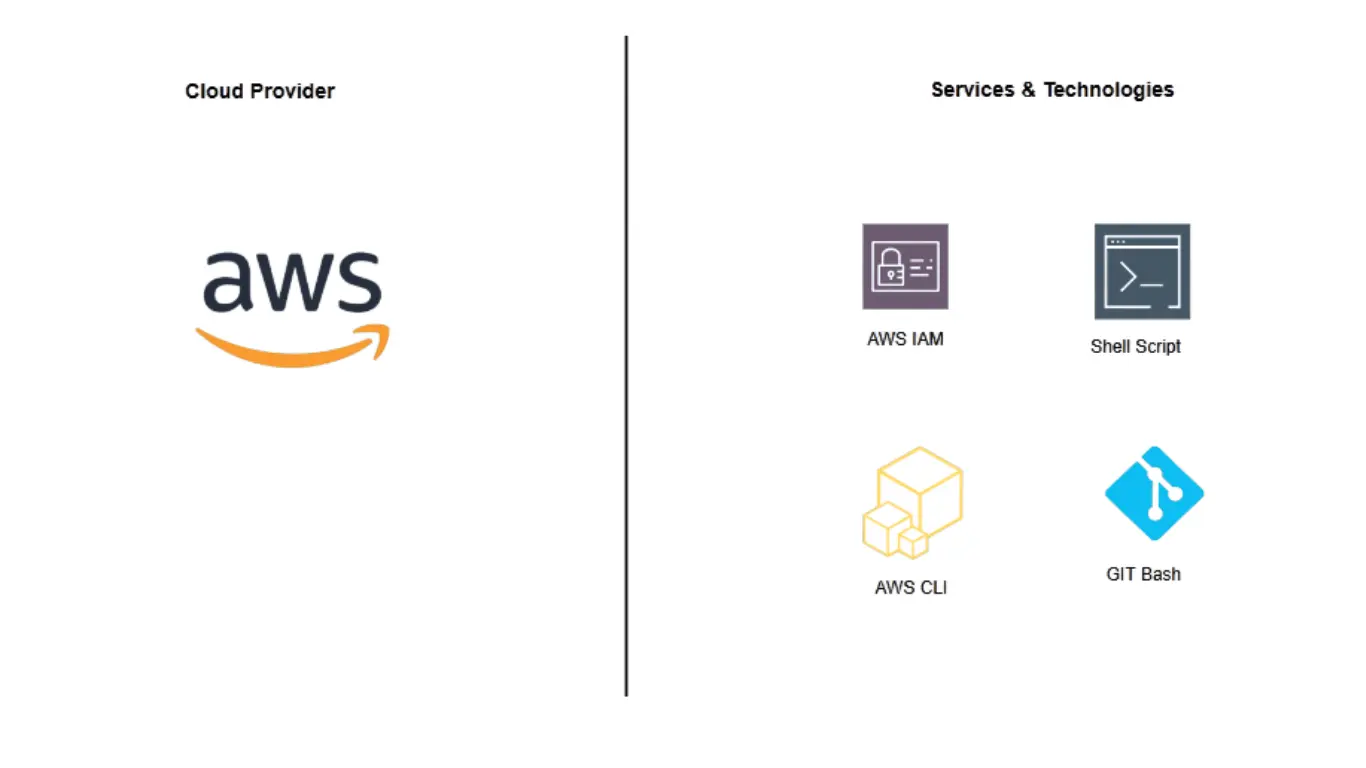
Managing identity at cloud scale is one of the most critical and most error-prone tasks a Cloud Engineer can face. When your organization needs to onboard hundreds or thousands of users into AWS Identity and Access Management (IAM), doing it manually through the AWS Console is simply not an option. In this post, I’ll walkthrough how I automated the migration of 1,000 IT users into AWS IAM using AWS CLI, Shell Script, and GitBash. Also, how I enforced Multi-Factor Authentication (MFA) as a security best practice across all accounts.
Whether you’re a Cloud Engineer, DevOps specialist, or AWS Solutions Architect, this hands-on guide covers everything from planning and scripting to security hardening with MFA policies.
Why Automate AWS IAM User Migration?
When you’re working with a large IT team migration say, 1,000 users across multiple departments like Cloud Administration, Database Administration, Linux Administration, and Network Administration manually creating each account in the AWS Console means:
- Hundreds of hours of repetitive work
- High risk of human error in permission assignments
- Inconsistent security configurations
- No audit trail or version control for IAM changes
Automation with AWS CLI and Shell Scripting eliminates these risks. It’s repeatable, auditable, and scalable when combined with an MFA enforcement policy, it establishes a strong security baseline from day one.
Tools & Prerequisites
Before diving in, here’s what you’ll need:
- GitBash (with AWS CLI configured)
- AWS CLI (configured with appropriate IAM permissions)
- VSCode (for editing and validating scripts)
- dos2unix (to handle line endings on Windows/Linux scripts)
- GitHub (to download migration scripts and policy files)
Files used in this project (available on GitHub):
https://github.com/kloudbyte/AWS-User-Migration.git
| File | Purpose |
|---|---|
aws-iam-create-user.sh |
Shell script to automate user creation |
IT_Team_KBCompany.xlsx |
Source spreadsheet with user data |
users2.csv |
Converted CSV used by the script |
mfapolicy.json |
JSON policy to enforce MFA |
Part 1: Automated User Creation with AWS CLI
Step 1 — Plan Your IAM Group Structure
Before running any script, define your group structure. In this project, the IT team was organized into four IAM groups, each mapped to a specific AWS managed policy:
| IAM Group | AWS Policy | Purpose |
|---|---|---|
CloudAdmin |
AdministratorAccess | Full cloud administration |
DBA |
AmazonRDSFullAccess | Database administration |
LinuxAdmin |
Custom Linux permissions | Linux server management |
NetworkAdmin |
Custom network permissions | Network infrastructure |
Good planning here prevents permission sprawl and ensures the principle of least privilege is applied from the start.
Step 2 — Prepare the User Data File
The user data lives in an Excel spreadsheet (IT_Team_KBCompany.xlsx). The automation script requires a specific CSV format with three columns: user, group, and password.
| User | Group | Password |
|---|---|---|
Jane Dan |
DBA | ChangeMe12345! |
Michael Olivia |
NetworkAdmin | ChangeMe12345! |
Water Brown |
CloudAdmin | ChangeMe12345! |
Brian Gay |
LinuxAdmin | ChangeMe12345! |
Important: Always use a default temporary password (like ChangeMe12345!) that users are required to change on first login. This is enforced later in the password policy. Convert the Excel file to CSV format. Save as users2.csv
Pro tip: Always test with a small subset (4–10 records) before running the script against the full 1,000-user list.
Step 3 — Set Up the Environment in GitBash
Connect to the AWS CLI or open GitBash and run the following commands to prepare your environment:
# Create a working directory
mkdir aws-mod2 && cd aws-mod2

# Install dos2unix to fix Windows line endings in scripts
sudo yum install dos2unix -y

# Clone or download the automation script from GitHub
# (replace with your actual GitHub repo URL)
git clone https://github.com/kloudbyte/AWS-User-Migration.git

# Verify the files are present
ls -la

# Grant execute permission to the shell script
chmod +x aws-iam-create-user.sh

# Verify permissions updated
ls -la

# Upload and validate the CSV file content
cat users2.csv
Step 4 — Run the Automation Script
With the CSV validated and permissions set, run the script:
./aws-iam-create-user.sh users2.csv
The script will iterate through every row in the CSV and:
- Create each IAM user
- Assign the user to the specified IAM group
- Set the temporary password
- Enable console access
Step 5 — Validate the Results
After the script completes, validate the results directly in the AWS Console:
- Navigate to IAM > Users to confirm all accounts were created
- Navigate to IAM > User Groups to verify group assignments
- Check Permissions on each group to confirm the correct policies are attached
To allow users to change their own passwords on first login, attach the IAMUserChangePassword managed policy to all groups:
IAM > User Groups > [Group Name] > Permissions > Add Permissions > Attach Policy > IAMUserChangePassword
Step 6 — Test User Access
- Go to IAM > Dashboard and copy your account’s sign-in URL
- Open a private/incognito browser window
- Sign in with a test user account (e.g.,
ola.dan/ChangeMe123456!) - Verify the user can only access services within their group’s permission scope
Example validation: User ola.dan (Group: DBA, Policy: AmazonRDSFullAccess) should be able to access RDS but receive an Access Denied error when trying to access DynamoDB. This confirms least-privilege permissions are working correctly.
Part 2: Security Hardening with MFA Enforcement
With users created and access tested, the next step is enforcing Multi-Factor Authentication (MFA) a non-negotiable security requirement for any production AWS environment.
Enable MFA on the Root User
The root user has unrestricted access to all AWS services and billing. Protecting it with MFA is the single most important security action you can take.
Steps:
- Log in to the AWS Console as root
- Navigate to IAM > Dashboard > Activate MFA
- Select Virtual MFA device
- Open Google Authenticator (or compatible app) and scan the QR code
- Enter two consecutive one-time tokens to confirm setup
- Click Assign MFA
Create and Attach the EnforceMFA Policy
The EnforceMFAPolicy ensures that users who have not enabled MFA cannot access AWS services even if they have group permissions. This is a critical control that blocks access at the policy level.
To create the policy:
- Navigate to IAM > Policies > Create Policy
- Select the JSON tab and paste the contents of
mfapolicy.json - Click Next, then enter the policy name:
EnforceMFAPolicy - Click Create Policy
To attach the policy to all groups:
- Open the
EnforceMFAPolicypolicy - Go to the Entities attached tab
- Click Attach
- Filter by User groups
- Select all groups:
CloudAdmin,DBA,LinuxAdmin,NetworkAdmin - Click Attach Policy
Testing the policy: Log in with user water.brown (Group: CloudAdmin, Policy: AdministratorAccess) but without MFA configured. Despite having administrator-level permissions, the user will receive an error when trying to access IAM services. This confirms the EnforceMFAPolicy is working as intended.
Strengthen the IAM Password Policy
A strong password policy reduces the risk of brute-force and credential stuffing attacks. Navigate to IAM > Account Settings > Password Policy > Edit and configure the following:
Password Strength Requirements:
- Require at least one uppercase letter (A-Z)
- Require at least one lowercase letter (a-z)
- Require at least one number (0-9)
- Require at least one non-alphanumeric character (
! @ # $ % ^ & *)
Additional Requirements:
- Allow users to change their own password
- Prevent password reuse
Click Save changes to apply the policy across all IAM users in the account.
Enable MFA for Individual Users
For any user who has not yet set up MFA:
- Log in as the user
- Click the account name in the top-right corner
- Select Security Credentials
- Under MFA device, click Assign MFA device
- Choose Virtual MFA device and follow the QR code setup
- Log out and log back in. The console will now prompt for an MFA token on every login
Conclusion
In this project, we successfully automate the creation of 1,000 IAM users, assigned users to IAM groups with appropriate permissions, enforced least-privilege access, enabled MFA on root user, strengthened, created and attached EnforceMFAPolicy and password policy.
Have questions about your own AWS IAM migration project? Drop a comment below or connect with me on LinkedIn.

