

Prerequisites
Before starting, ensure the following are in place:
- AWS Account with IAM user credentials (Access Key + Secret Key)
- AWS CLI installed and configured
- Terraform >= 1.5.0 installed
- Git installed
- Python 3.11+ installed (for local development)
- Sumo Logic account (free trial works)
Invoke-WebRequest -Uri "https://awscli.amazonaws.com/AWSCLIV2.msi" -OutFile "$env:TEMP\AWSCLIV2.msi"
Start-Process msiexec.exe -Wait -ArgumentList "/I $env:TEMP\AWSCLIV2.msi /quiet"
$env:Path = [System.Environment]::GetEnvironmentVariable("Path", "Machine")
aws --version
Install Terraform (Windows)
Invoke-WebRequest -Uri "https://releases.hashicorp.com/terraform/1.8.4/terraform_1.8.4_windows_amd64.zip" -OutFile "$env:TEMP\terraform.zip"
Expand-Archive -Path "$env:TEMP\terraform.zip" -DestinationPath "C:\terraform"
[Environment]::SetEnvironmentVariable("Path", $env:Path + ";C:\terraform", [EnvironmentVariableTarget]::Machine)
$env:Path += ";C:\terraform"
terraform -version
Configure AWS Credential
aws configure
AWS Access Key ID: YOUR_ACCESS_KEY
AWS Secret Access Key: YOUR_SECRET_KEY
Default region name: us-east-1
Default output format: json
Verify credentials are working
aws sts get-caller-identity
Clone the Repository
Clone the public repository to your local machine, this gives you all the files you need:
git clone https://github.com/kloudbyte/platform-engineering.git
cd platform-engineering
Part 1 — Sumo Logic Query and Alert
Step 1.1 — Review the Sumo Logic Query
Open sumo_logic_query.txt from the cloned repository:
Query breakdown:
| Clause | Purpose |
|---|---|
_sourceCategory |
Scopes the query to your application’s log source in Sumo Logic |
parse ... as |
Extracts endpoint and response_time fields from your log format |
where endpoint = "/api/data" |
Filters for the specific endpoint being monitored |
where response_time > 3000 |
Flags requests slower than 3 seconds (3000ms) |
count as slow_requests |
Aggregates the count of matching entries |
where slow_requests > 5 |
Surfaces the result only when more than 5 slow requests are detected |
Step 1.2 — Create the Sumo Logic Monitor
- Log in to your Sumo Logic account
- Navigate to Manage Data → Monitoring → Monitors
- Click + New → New Monitor
Step 1.3 — Trigger Conditions:
| Setting | Value |
|---|---|
| Monitor Type | Logs |
| Detection Method | Static |
| Query | Paste contents of sumo_logic_query.txt |
| Trigger alerts on | slow_requests |
| Alert when result is greater than | 5 |
| Within | 10 Minutes |
| Evaluate every | 1 Minute |
| Trigger Type | Critical |
Make sure the time window is set to 10 Minutes not 5 minutes which is the default.
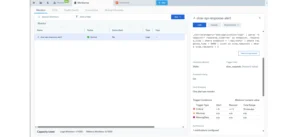
Step 1.4 — Notifications:
You will add the webhook connection after deploying Lambda. Skip for now and come back.
Step 1.5 — Monitor Details:
| Field | Value |
|---|---|
| Monitor Name | slow-api-response-alert |
| Description | Triggers when /api/data response time exceeds 3s for more than 5 requests in a 10-minute window |
| Tags | project=platform-engineering |
Click Save.
Part 2 — AWS Lambda Function
Step 2.1 — Review the Lambda Function
Open lambda_function/lambda_function.py from the cloned repository. The function uses a background thread pattern it responds 200 OK to Sumo Logic immediately, then performs the EC2 restart in the background. This prevents Sumo Logic from timing out (408) while waiting for the EC2 stop/start cycle to complete.
Why the background thread pattern matters:
| Approach | Sumo Logic Result |
|---|---|
| Synchronous (stop → start → respond) | 408 Timeout — Lambda takes 4–5 min |
| Background thread (respond → stop/start in background) | 200 OK — responds in milliseconds |
Step 2.2 — Deploy Infrastructure with Terraform First
Step 2.3 — Deploy Lambda via AWS Console (Manual Option)
2. Select Author from scratch.
| Setting | Value |
|---|---|
| Function name | auto-remediation-restart |
| Runtime | Python 3.11 |
| Architecture | x86_64 |
| Execution role | Create or use existing role (see IAM section in Part 3) |
- In the Code tab, paste the contents of
lambda_function/lambda_function.py - Click Deploy
Step 2.4 — Configure Environment Variables
Go to Configuration → Environment variables → Edit and add:
| Key | Value |
|---|---|
EC2_INSTANCE_ID |
Your EC2 instance ID (e.g., i-0abc1234def56789) |
SNS_TOPIC_ARN |
Your SNS topic ARN (e.g., arn:aws:sns:us-east-1:XXXX:auto-remediation-alerts) |
AWS_REGION_NAME |
us-east-1 |
Use AWS_REGION_NAME not AWS_REGION. Lambda reserves AWS_REGION as a built-in variable and will not let you override it.
Step 2.5 — Set Lambda Timeout
Go to Configuration → General configuration → Edit:
| Setting | Value |
|---|---|
| Timeout | 5 min 0 sec |
Click Save. The default 3-second timeout is far too short for the EC2 stop/start cycle.
Step 2.6 — Create a Lambda Function URL
- Go to Configuration → Function URL → Create function URL
- Set Auth type: NONE
- Click Save
- Copy the generated URL — looks like:
https://xxxxxxxxxxxxxxxx.lambda-url.us-east-1.on.aws/We will use this URL in the Sumo Logic webhook connection.
Step 2.7 — Test the Lambda Function
- Go to the Test tab → Create new test event
- Paste this payload:
{
  "alertName": "slow-api-response-alert",
  "triggerType": "Critical",
  "numQueryResults": 7,
  "queryTimeRange": "last 10 minutes"
}
- Click Test
Expected log output:
[INFO] Triggered at 2026-04-29T21:58:18Z
[INFO] Acknowledged Sumo Logic alert. EC2 restart initiated in background.
[INFO] Stopping instance i-0xxxxxxxxx
[INFO] Instance stopped. Starting now...
[INFO] Instance running.
[INFO] SNS notification sent successfully.
Verify in the EC2 console that the instance restarted and check your email for the SNS notification.
Part 3 — Infrastructure as Code with Terraform
Step 3.1 — Navigate to the Terraform Directory
cd platform-engineering/terraform
Step 3.2 — Review the Terraform Files
variables.tf — Input variables.
main.tf — EC2, SNS, and Lambda resources.
outputs.tf — Useful values printed after deployment.
Step 3.3 — Deploy with Terraform
# Initialize — downloads the AWS provider plugin
terraform init

# Preview what will be created
terraform plan -var="notification_email=your@email.com"

# Deploy all resources
terraform apply -var="notification_email=your@email.com"
When prompted, type yes. Terraform will output all resource details, including the Lambda Function URL for Sumo Logic.
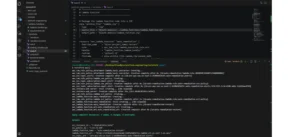
Step 3.4 — Confirm Your SNS Subscription
Check your email for a “AWS Notification – Subscription Confirmation” message and click the confirmation link. Without this step, SNS notifications will not be delivered.
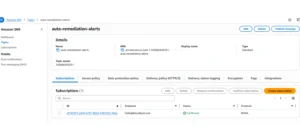
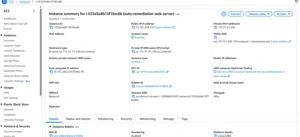
Step 3.5 — Verify Deployment
| Resource | Where to check |
|---|---|
| EC2 instance running | EC2 → Instances → auto-remediation-web-server |
| SNS topic created | SNS → Topics → auto-remediation-alerts |
| Lambda deployed | Lambda → Functions → auto-remediation-restart |
| IAM role correct | IAM → Roles → auto-remediation-lambda-role |
| Lambda Function URL | Lambda → Configuration → Function URL |
Part 4 — Connect Sumo Logic Alert to Lambda
Now that Lambda is deployed with a Function URL, let’s complete the Sumo Logic webhook setup.
Step 4.1 — Create the Webhook Connection
- Go to Sumo Logic → Manage Data → Monitoring → Connections
- Click + Add Connection → Webhook
- Fill in:
| Field | Value |
|---|---|
| Name | lambda-auto-remediation |
| URL | Your Lambda Function URL from Terraform output |
| Custom Headers | Content-Type:application/json |
- Replace the Alert Payload with:
{
  "alertName": "{{Name}}",
  "triggerType": "{{TriggerType}}",
  "numQueryResults": "{{NumQueryResults}}",
  "queryTimeRange": "{{TimeRange}}",
  "description": "Auto-remediation triggered: /api/data response time exceeded 3s"
}
- Click Test Alert and you should receive a
200 OKresponse immediately - Click Save
Step 4.2 — Attach Webhook to Your Monitor
- Go to Monitoring → Monitors → slow-api-response-alert → Edit
- Scroll to Step 3 — Notifications
- Click the Connection Type dropdown → select Webhook
- Choose lambda-auto-remediation
- Check Critical → Alert
- Click Save
Your complete pipeline is now live.
End-to-End Validation
Test the full pipeline works as expected:
1 — Trigger Lambda manually from AWS Console:
- Go to Lambda → auto-remediation-restart → Test
- Use the sample payload and click Test
- Confirm EC2 restarts in the EC2 console
- Confirm SNS email arrives in your inbox
2 — Verify Sumo Logic webhook:
- Go to Connections → lambda-auto-remediation → Test Alert
- Confirm
200 OKresponse - Confirm EC2 restarts again
- Confirm SNS notification arrives
3 — Verify CloudWatch logs:
- Go to CloudWatch → Log groups → /aws/lambda/auto-remediation-restart
- Confirm log entries show the stop → start → SNS sequence
Clean Up Resources
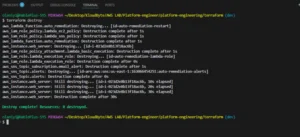
When done, destroy all resources to avoid ongoing charges:
Confirm with ‘yes’. Terraform deletes resources in the correct order: EC2, Lambda, SNS topic, IAM roles, and Function URL.
- Monitoring → Monitors → delete
slow-api-response-alert - Monitoring → Connections → delete
lambda-auto-remediation
Conclusion
The Git repository provides a working, tested foundation to avoid common errors in paths, IAM policies, and Lambda configuration. Sumo Logic webhooks have a short response timeout, and returning 200 OK immediately while processing in a background thread prevents 408 errors without sacrificing any functionality. ec2:DescribeInstances requires Resource: * An AWS service limitation describe-family EC2 actions cannot be scoped to specific resource ARNs. Always separate them into their own IAM statement. The Lambda Function URL, EC2 instance ID, and SNS ARN are all printed automatically after “terraform apply.” We directly integrate with the Sumo Logic webhook and the Lambda environment variables.

