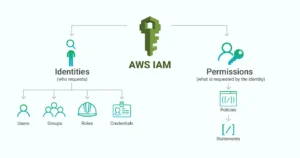
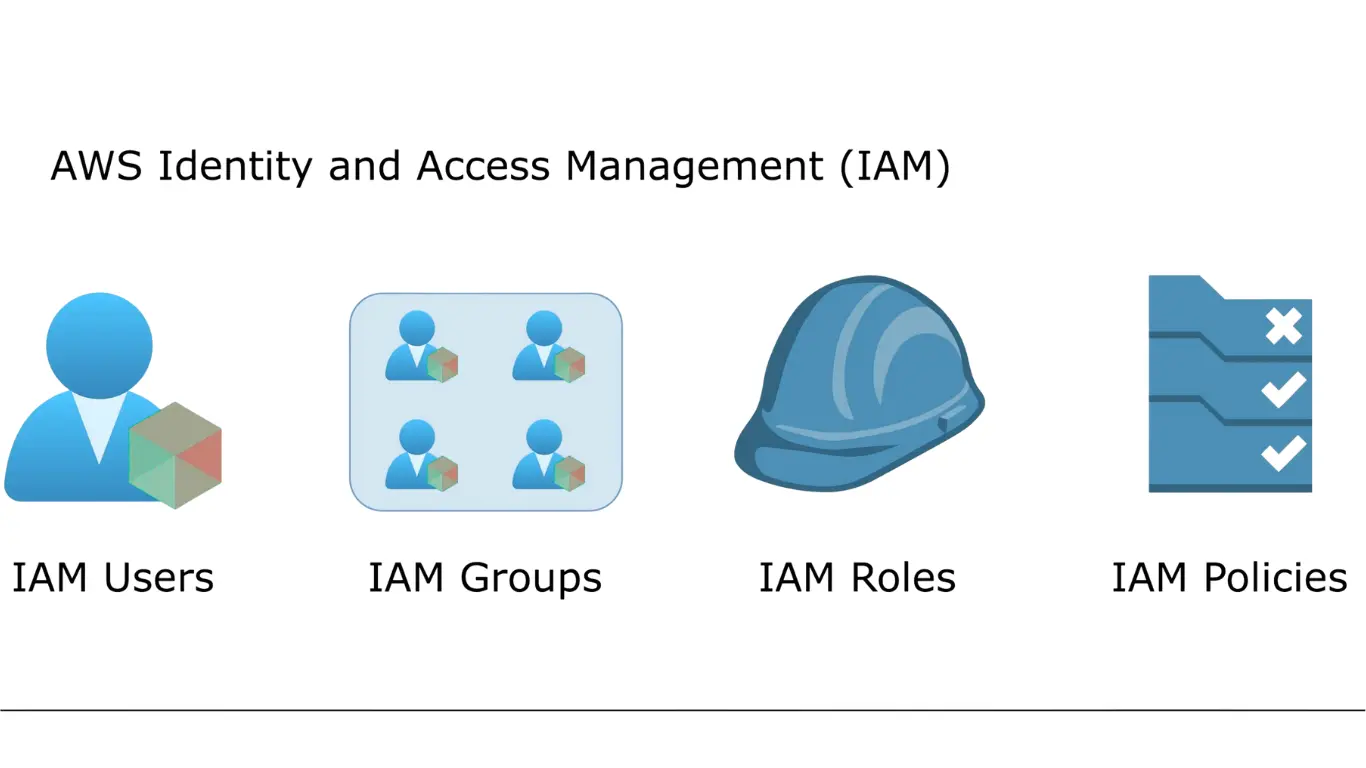
Managing access securely is one of the most critical responsibilities in any AWS environment, and Creating AWS Users, Groups, and Programmatic Users is a foundational skill for cloud administrators and DevOps engineers. AWS Identity and Access Management (IAM) provides the tools to control who can access AWS resources and what actions they can perform, helping organizations maintain strong security and compliance.
AWS recommends using a structured approach when creating users, groups, and programmatic users. This means matching permissions to actual job roles and application requirements.
Creating AWS Users
IAM –> Users –> Create user
Username: kb-olaniyi
Check “Provide user access to the AWS Management Console – optional.”
Check the auto-generated password.
Check “Users must create a new password at next sign-in – Recommended.”
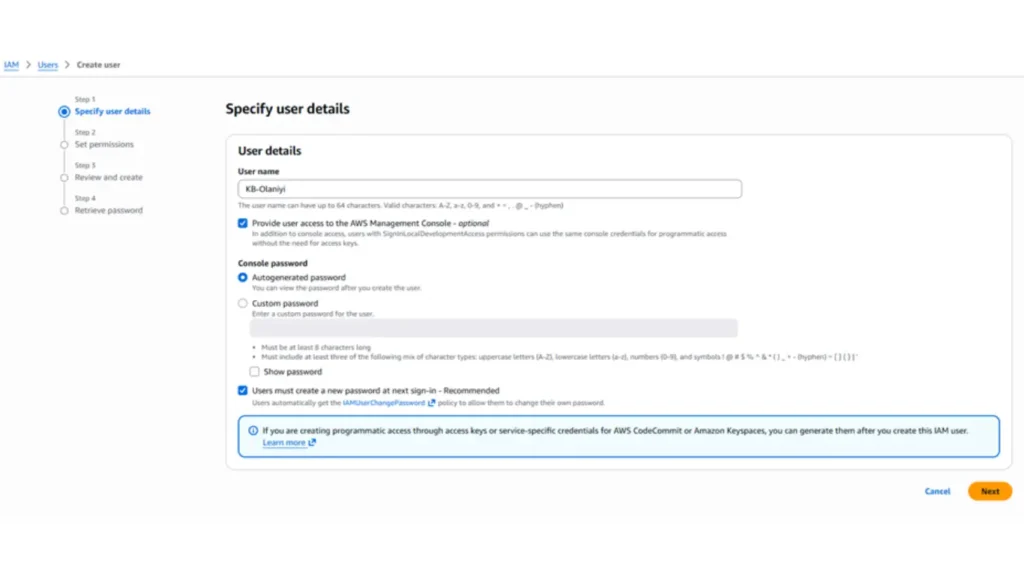
Click Next
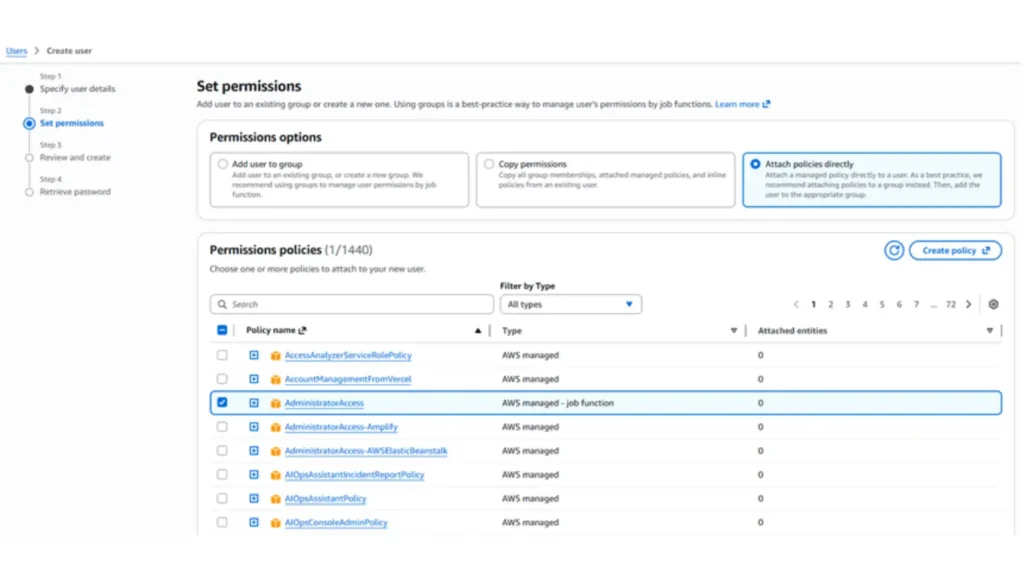
Permissions options
Attach policies directly: Administrator Access Click Next
Review and create
Add Tags – optional
Tags are key-value pairs you can add to AWS resources to help identify, organize, or search for resources.
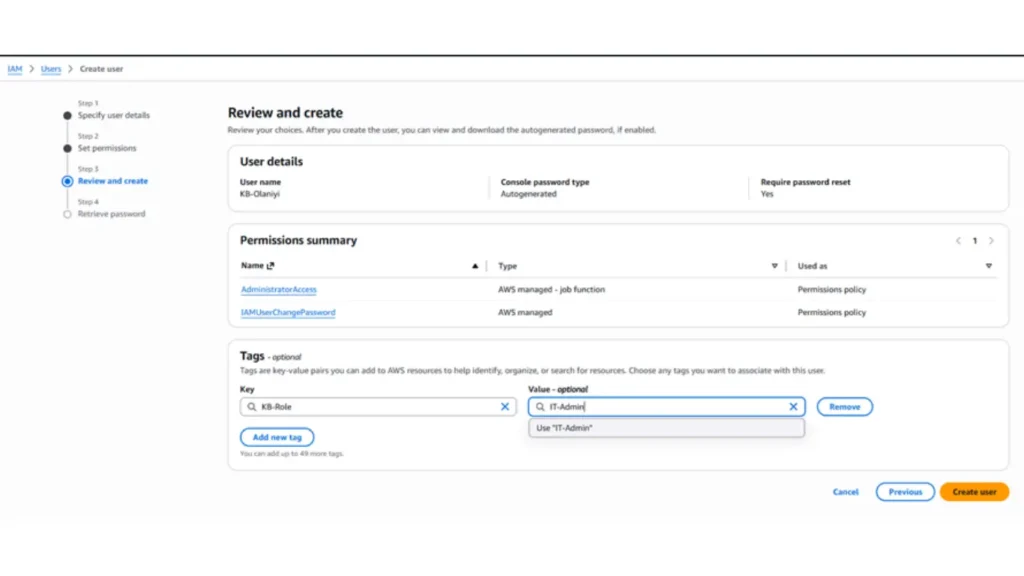
Create user
Console sign-in details: URL, name, and password. Download .csv file
A newly created user login
Open an incognito mode browser
Access the AWS console
Explore services access like EC2, S3, RDS…
AWS: Home Page
Creating AWS Groups
IAM –> User groups –> Create group
User group name – Attach Permission Policies
– CloudAdmin: AdministratorAccess
– DBA: AmazonRDSFullAccess
– LinuxAdmin: AmazonEC2FullAccess
– NetworkAdmin: AmazonVPCFullAccess
Click Create user group.
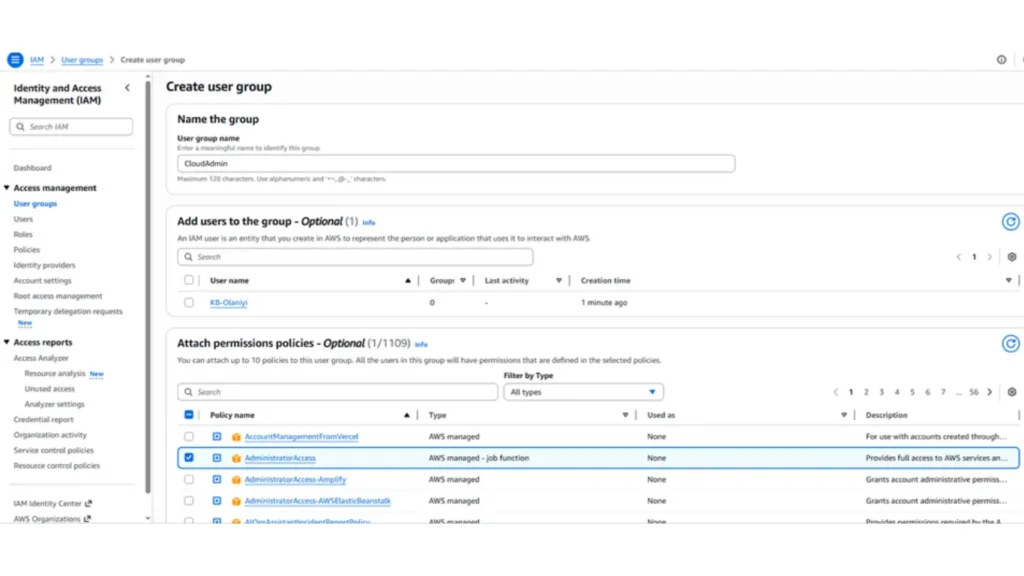
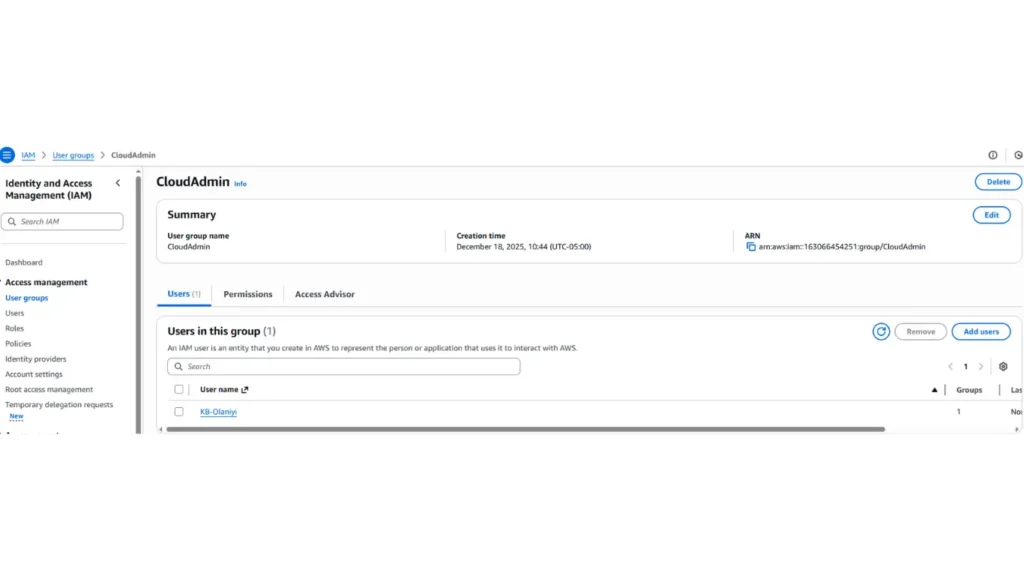
User Group Association
– Access the group and click on “Add users.”
CloudAdmin | KB-Olaniyi
Creating a Programmatic Users
– IAM, Users, Create user
– User name: kb-automation-admin
Check: Provide user access to the AWS Management Console – optional
Next
– Permissions options
– Attach policies directly: IAMFullAccess
Click Next
Review and create Create user
Creating Access Keys for the Programmatic User
– Access the user created: kb-automation-admin
– Security credentials
– Access keys, Create access key
– Use case: (*) Command Line Interface (CLI)
– [✔] I understand the above recommendation and want to proceed to create an access key.
Next, create an access key
* Access key: AK2B7G9NCGWMP4D7G6VX
* Secret access key: /ZxEzSb2fp86Sdef7b3scYFWh/I8/IAIuzqViv4Y
Download the .csv file. Done
Testing Programmatic User Access
– CloudShell | “aws-cli” comes already installed!
– aws iam list-users
– aws iam list-groups
– aws s3 ls
– Create a bucket with your full name!
– aws s3 ls
Check the current temporary permissions of CloudShell (user: root)
– aws sts get-caller-identity
– aws configure list
– printenv | grep AWS
If you close CloudShell and open a new session, new temporary access keys will be created!
Setting up the Programmatic user’s Access Keys
– aws configure | Configure the created key pair!
– aws configure list | Validate the credentials set up!
– aws sts get-caller-identity | user: kb-automation-admin
– aws s3 ls (access denied)
– aws iam list-users – aws iam list-groups
– aws iam list-groups-for-user –user-name kb-admin
– aws ec2 describe-instances
– aws s3